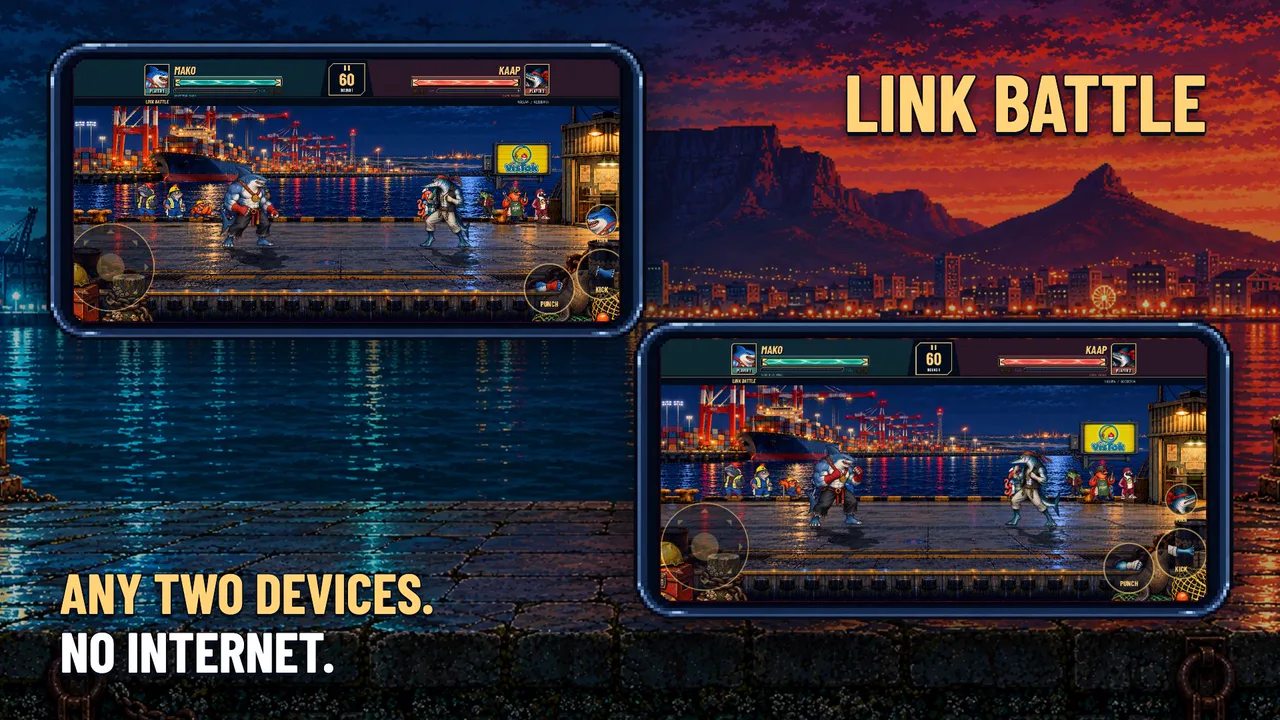
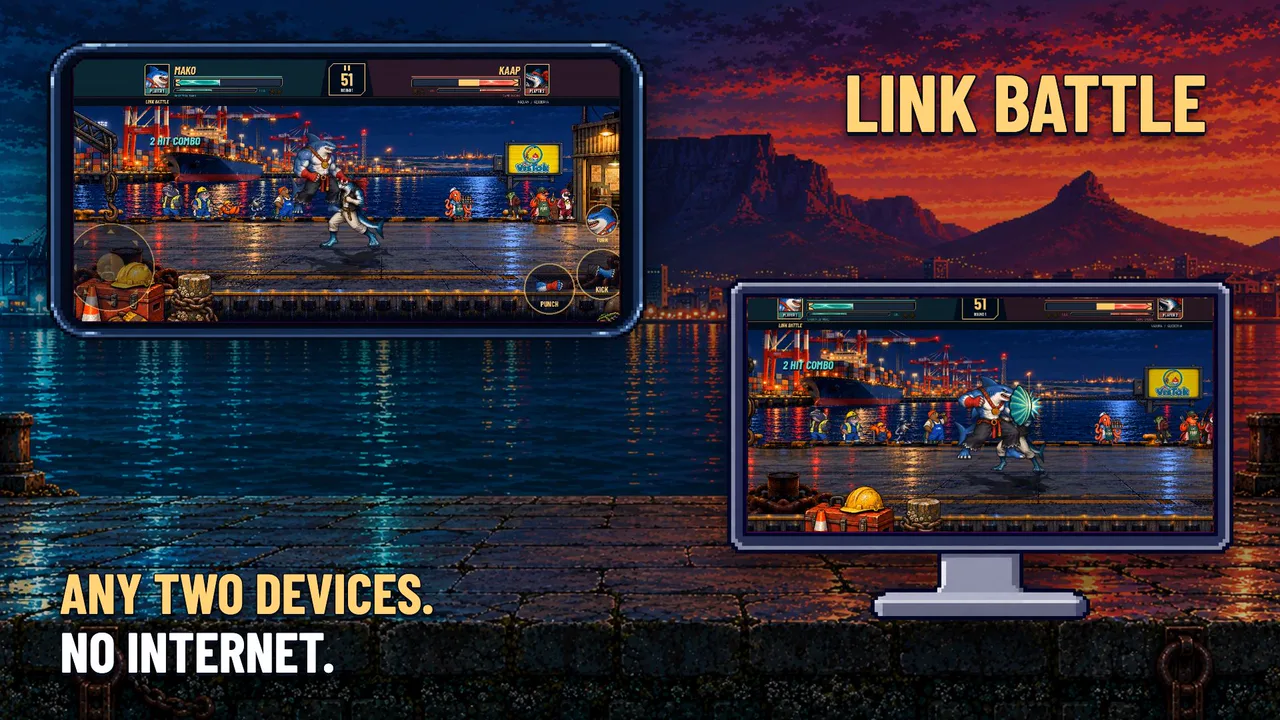
Two phones, a phone and a tablet, or a phone and a laptop: any two devices running SNOEK'EM can fight each other, as long as they're on the same Wi-Fi network or one is sharing a hotspot. No internet, no accounts, no signal needed. iPhone against Android works too.
One player hosts, the other joins. Each picks their own fighter, the host picks the arena, and the fight runs on both screens at once: the host is player one, the guest player two.
Tutorial / @redroman_angie
Angie sets one up
The two phones' own screens, from a Link Battle recorded on a Galaxy A22 (hosting) and A25 (joining).
Quick start
Three steps
1
Get on the same network
Both devices on the same Wi-Fi, or one phone turns on its hotspot and the other joins it. A hotspot is usually the smoother option: here’s how.
2
Host and join
On both: FIGHT then LINK BATTLE, and enter three initials the first time. One device picks HOST A BATTLE; the other picks JOIN A BATTLE and taps the host's name in the list.
3
Pick and fight
Each player locks in a fighter; the host chooses the arena. Rematch as often as you like.
Option one / recommended
A phone's hotspot
One phone shares a hotspot, the other device joins it like any Wi-Fi network. It works anywhere, with or without mobile data: the game doesn't use the internet, so the hotspot phone's data can be off. Fewer devices on the network means a steadier fight.
iPhone: share the hotspot
Open Settings, then Personal Hotspot (on some iPhones it's under Cellular or Mobile Data).
Turn on Allow Others to Join. Note the Wi-Fi password shown there.
If an older device can't see it, turn on Maximize Compatibility on the same screen.
An iPhone needs a mobile plan that allows hotspots. A Wi-Fi-only iPad can join a hotspot, but can't share one.
Android: share the hotspot
Swipe down from the top of the screen and tap Hotspot in quick settings (you may need to swipe again to see it).
Or open Settings: on a Samsung, Connections, Mobile Hotspot and Tethering, Mobile Hotspot; on most others, Network & internet, Hotspot & tethering, Wi-Fi hotspot.
Turn it on, and note the network name and password on that screen.
Menu names vary a little by phone maker and Android version.
The other device: join it
Open Settings, then Wi-Fi, and pick the hotspot's name. Enter its password.
Android: if it warns Internet may not be available, choose to stay connected. Turn off any setting that switches to mobile data or to a "better" Wi-Fi on its own, or the phone may drop the hotspot for your home network.
A computer: join the hotspot from the Wi-Fi menu, the same way.
Option two
The same Wi-Fi
At home, both devices can simply join the same Wi-Fi network. Check they really are on the same one: a "guest" network is usually kept apart from the main one, so devices on it can't see each other. A busy home network can make the fight a little less steady than a hotspot.
In the game
Hosting and joining
The host
FIGHT, LINK BATTLE, then HOST A BATTLE.
The WAITING FOR A RIVAL screen shows your initials and this device's ADDRESS. Leave it open.
When your rival joins, pick your fighter, then the arena.
The guest
FIGHT, LINK BATTLE, then JOIN A BATTLE.
The host appears in the list with its initials, address and ping. Tap it.
Not listed? Tap TYPE ADDRESS, enter the address from the host's screen (an iPhone hotspot's is usually 172.20.10.1), then FIND.
Brander and the Mieliefish: only the player choosing them needs them unlocked. The other device shows them anyway.
If it doesn't connect
Troubleshooting
The host isn't in the list
Check both devices are on the same network (Settings, Wi-Fi), and the host is still on WAITING FOR A RIVAL. Then use TYPE ADDRESS with the address that screen shows.
iPhone: nothing ever shows up
The game needs Local Network access to find other devices. iOS asks the first time; if you said no, open Settings, Privacy & Security, Local Network, and turn on SNOEK'EM.
CAN’T CONNECT on Android
The phone may have switched to mobile data or another Wi-Fi network. Open Wi-Fi settings, tap the hotspot again, and if asked whether to stay connected without internet, say yes.
TURNED AWAY: different version
Both devices need the same version of the game. Update both (from the downloads, or the app store once it's there), then try again.
CAN’T HOST
The device couldn't open a network connection. Check Wi-Fi or the hotspot is on, then host again.
LINK LOST mid-fight
The connection dropped for too long, usually from moving out of range. Stay close: a hotspot reaches a room or two, not a house.
A computer won't connect
When the game first hosts or joins, macOS and Windows may ask whether to allow network connections. Allow it, on private networks.
How it works
When a device hosts, it announces itself on the local network; a device that joins listens for that, or asks the address you type. The two then connect directly to each other. Nothing goes through the internet, and nothing reaches us.
Both devices run the same fight at 120 steps a second, in lockstep: each step, they swap only what each player pressed, so both screens show exactly the same bout. A short connection hiccup is waited out rather than guessed at. The networking was first written for Coldshift, a racing game by the same developer, and it's called LocalNet. What the game sends and keeps is in the privacy policy.